Setting up a new test matrix
To create a new test matrix, follow these steps:
-
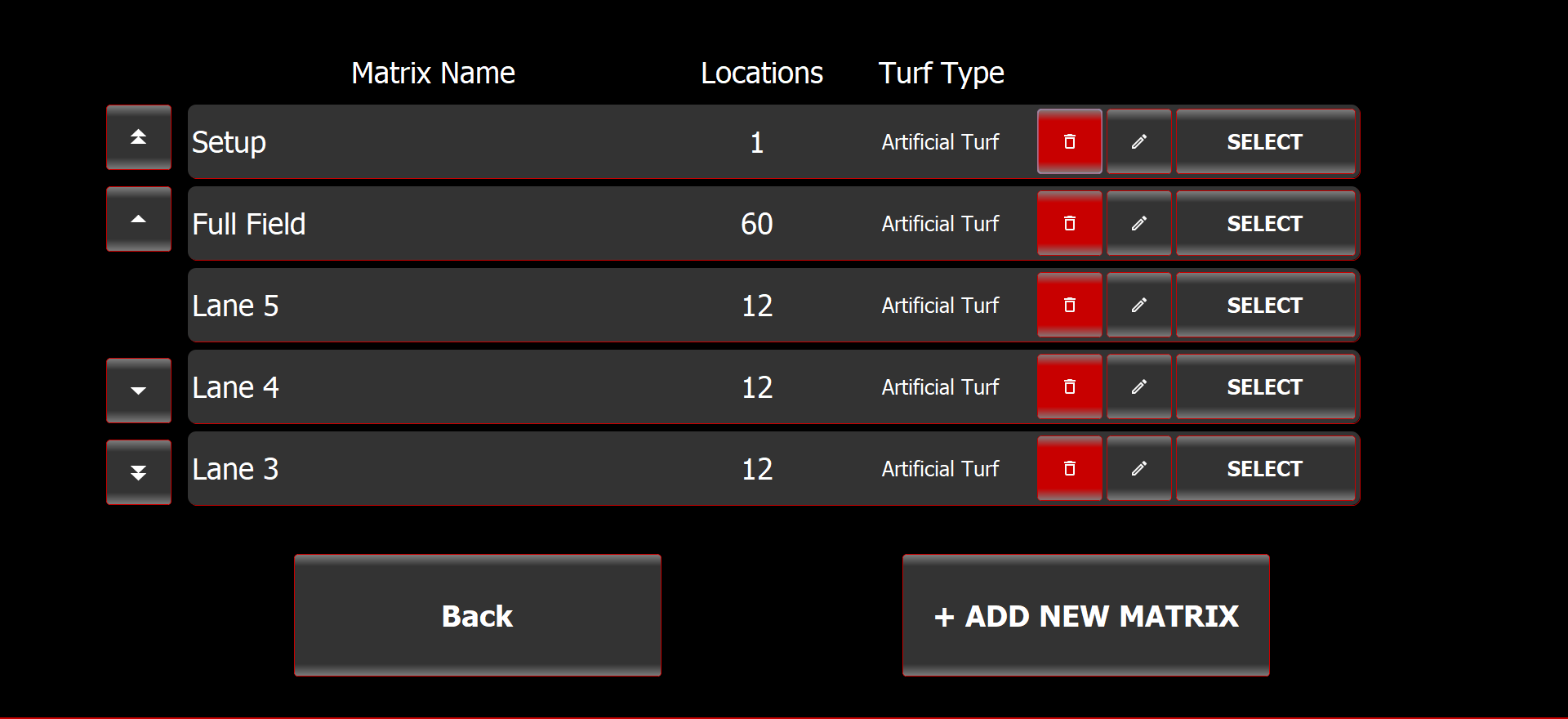
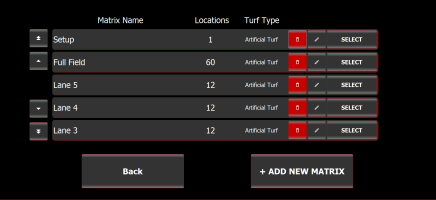
In the Select Matrix screen, select Add new matrix.
Select Matrix screen
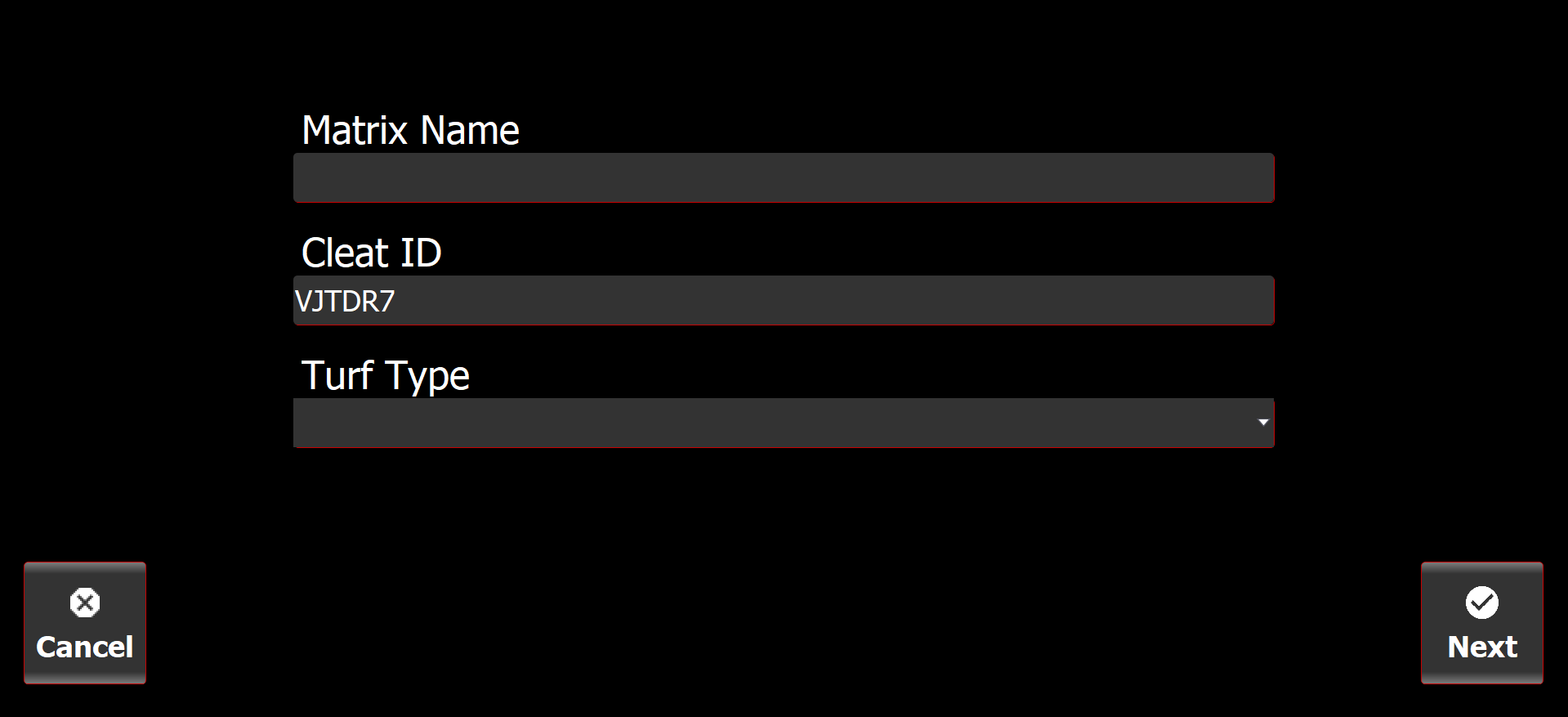
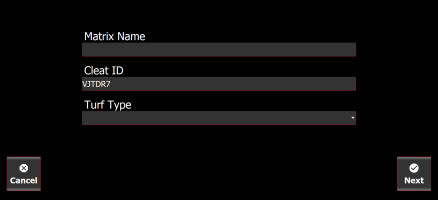
The Create Test Matrix screen is displayed.
Create Test Matrix screen
-
Enter the Matrix Name and select the Turf Type.
The Cleat ID is preconfigured to be the appropriate ID.
Use the naming conventions specified during your Biocore training.
-
Select Next.
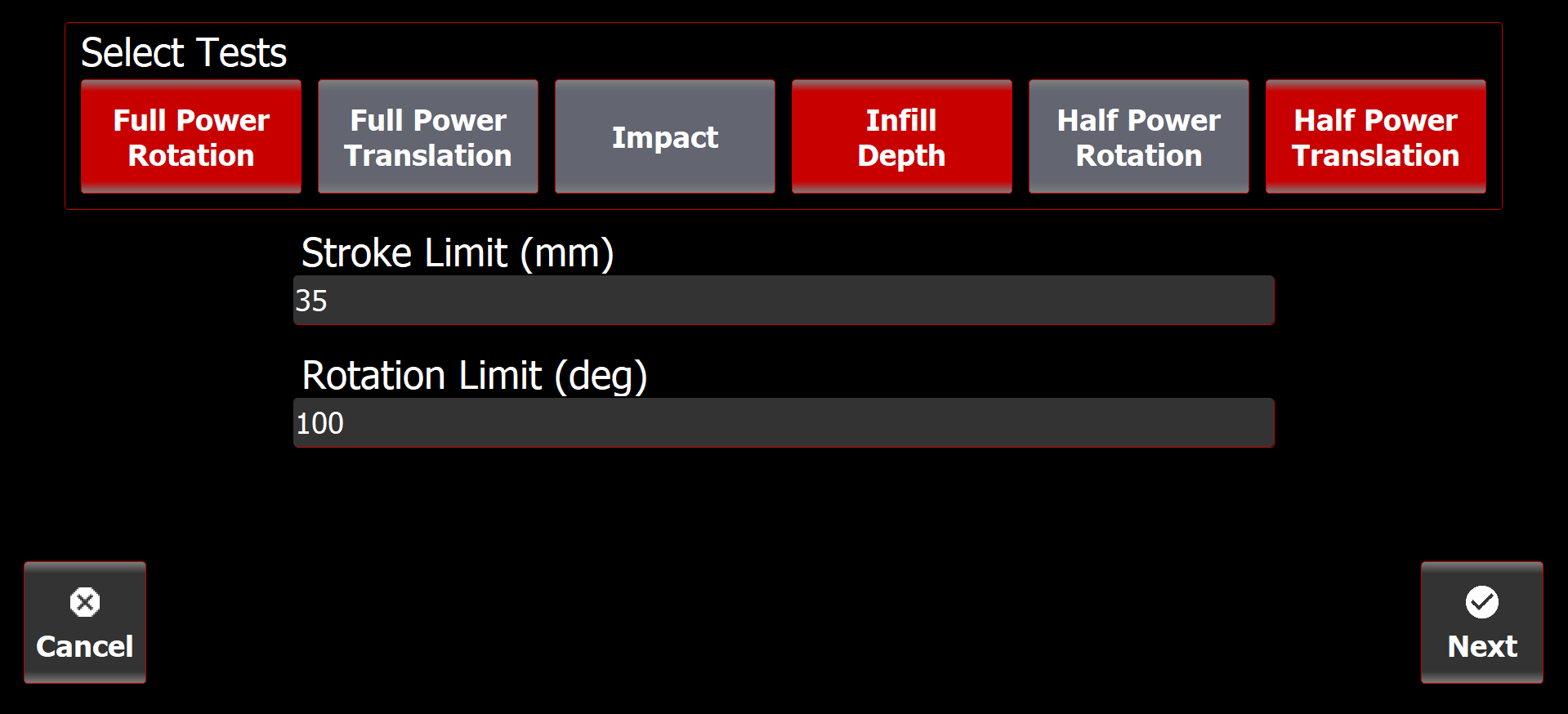
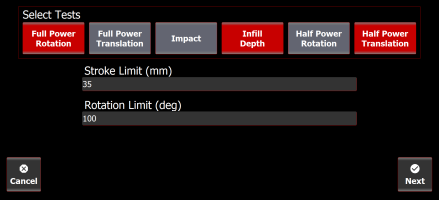
The Select Matrix Tests screen is displayed.
Select Matrix Tests screen
-
Select tests to identify the specific test mode(s) to include in the test matrix. The options are:
-
FPR (full power rotation)
-
FPT (full power translation)
-
Impact
-
Infill depth or Moisture content. The option depends on field type selected.
-
HPR (half power rotation)
-
HPT (half power translation)
-
-
Enter the Stroke limit (mm) and Rotation limit (deg) as specified by Biocore.
-
Select Next.
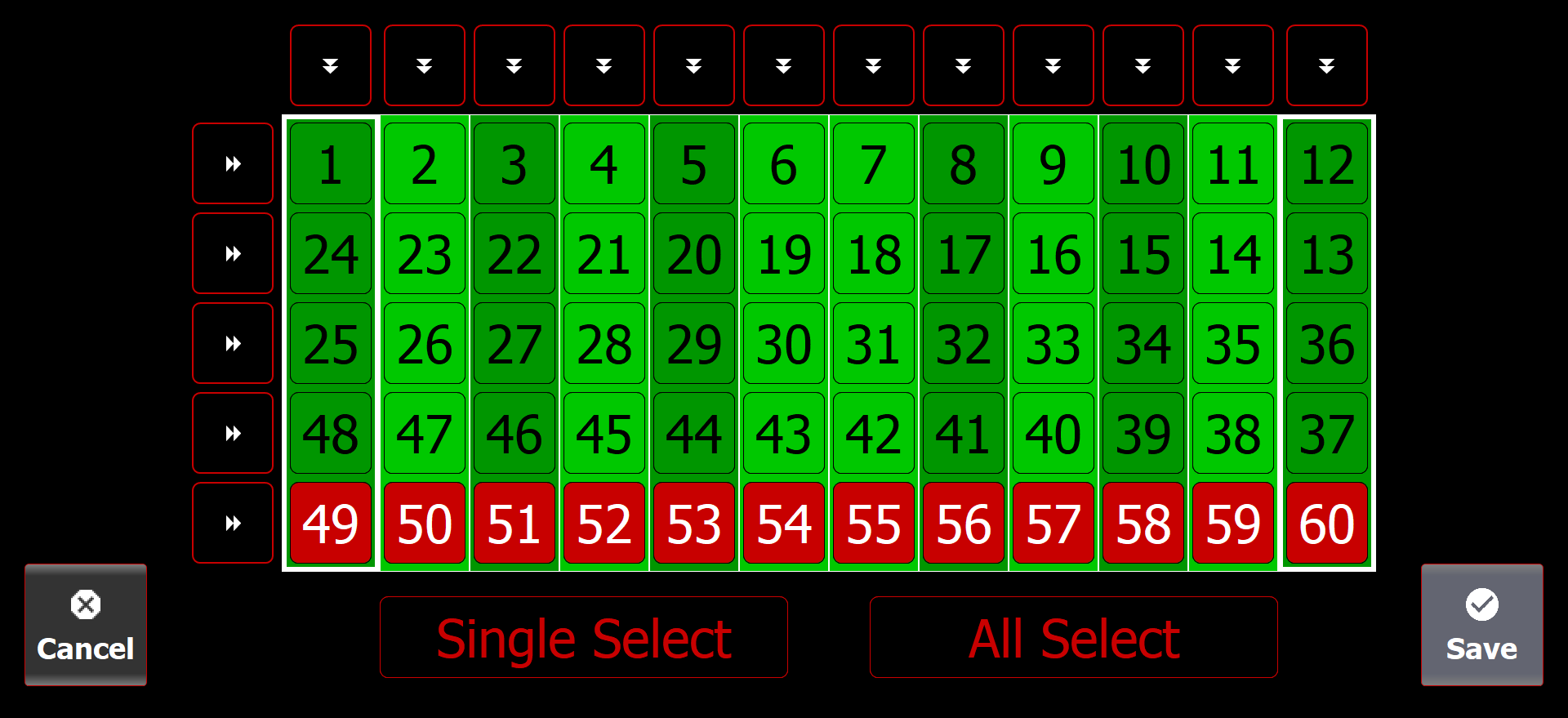
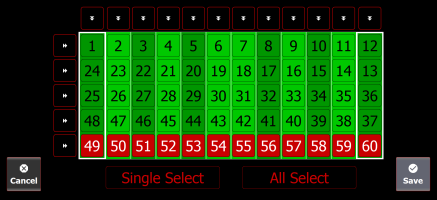
The Select Matrix Locations screen is displayed.
Select Matrix Locations screen
-
Choose the specific test locations from the 5x12 field grid and select Save.